
How do you deactivate SOLIDWORKS?
To deactivate SOLIDWORKS, open the application, go to Help > Licenses > Deactivate, select the products to deactivate, enter your activation email address, and click Next then Finish. Your license is then free to be activated on another computer.
When should you deactivate SOLIDWORKS?
Deactivation is required in the following situations:
- You are installing SOLIDWORKS on a new computer because the original computer is no longer in use
- The standalone license is currently active on another computer and must be deactivated on that machine before it can be activated on a different one
Common issues
When installing SOLIDWORKS on a new computer, SOLIDWORKS will not activate with the error message showing: “Activation count exceeded”
SOLIDWORKS might need to be deactivated for several reasons but here are 2 common reasons:
- SOLIDWORKS needs to be installed on a new computer as the old computer is out of use.
- The standalone license is active on other computer. In this case, SOLIDWORKS needs to be deactivated on the active computer before the license can be activated on another computer.
Important notice: There is a finite limit on the number of times a SOLIDWORKS license can be deactivated and reactivated. Check your license agreement or contact your reseller to confirm the current limit before proceeding.
How do you complete the SOLIDWORKS deactivation process?
- Open SOLIDWORKS.
- Navigate to the Help menu. (Top right of the screen)

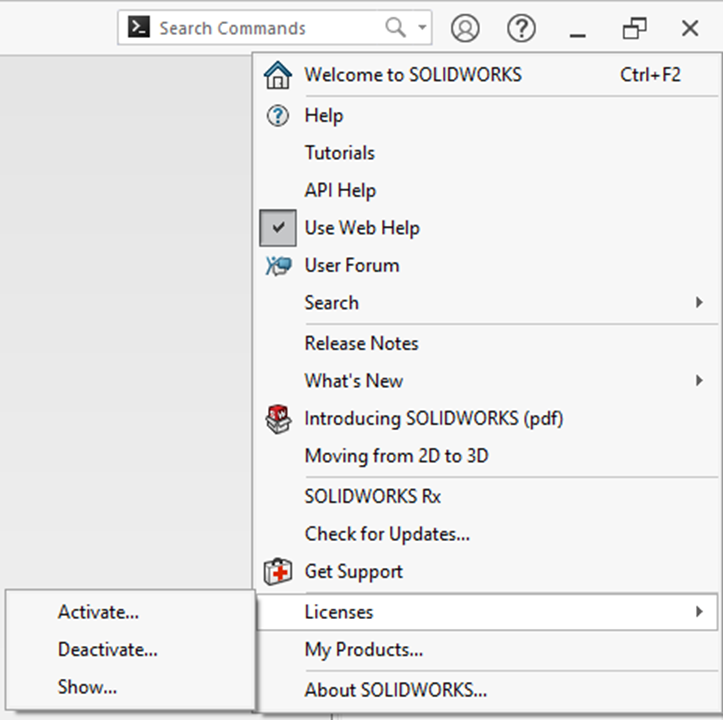
- Navigate to "Licenses"
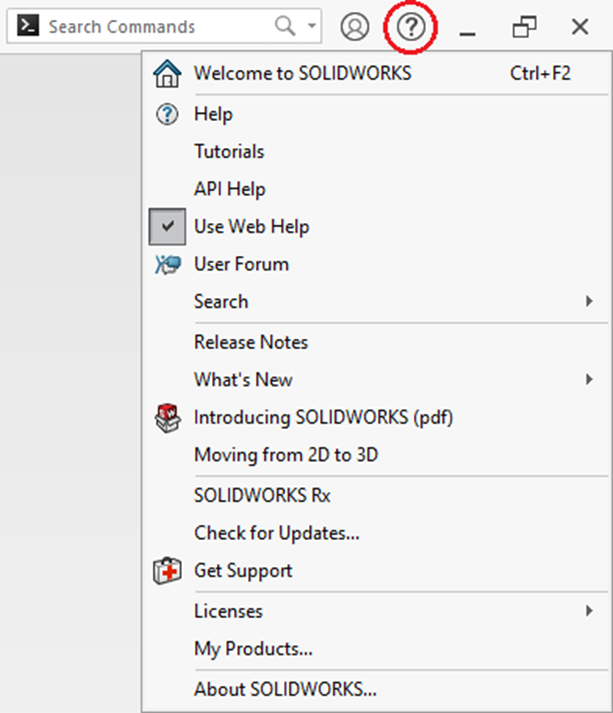
- Select "Deactivate"
- Select the products that you want deactivated.
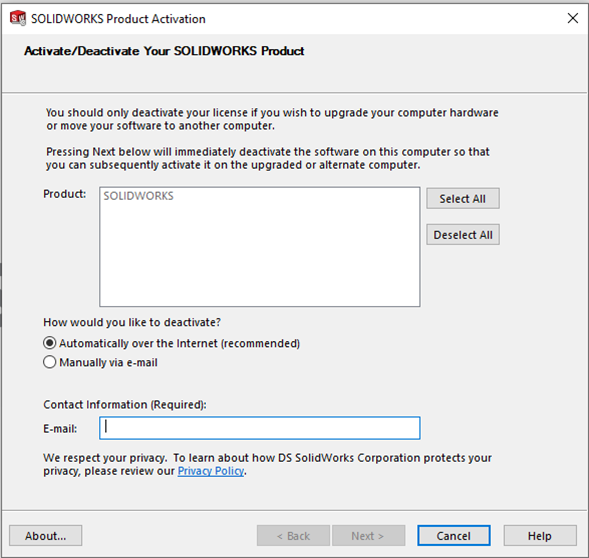
- Enter the email associated with the activationSelect your deactivation method: choose Automatically via the Internet for an instant deactivation, or By email if the computer does not have internet access.
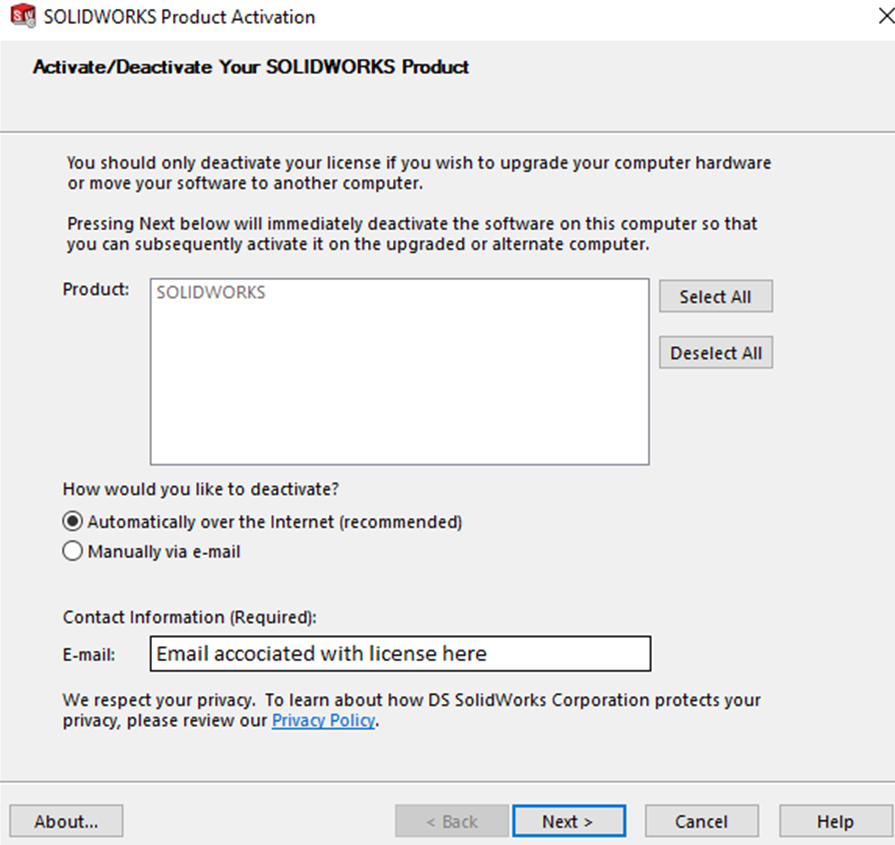
- Select "Next".

- A page will appear stating deactivation is successful.
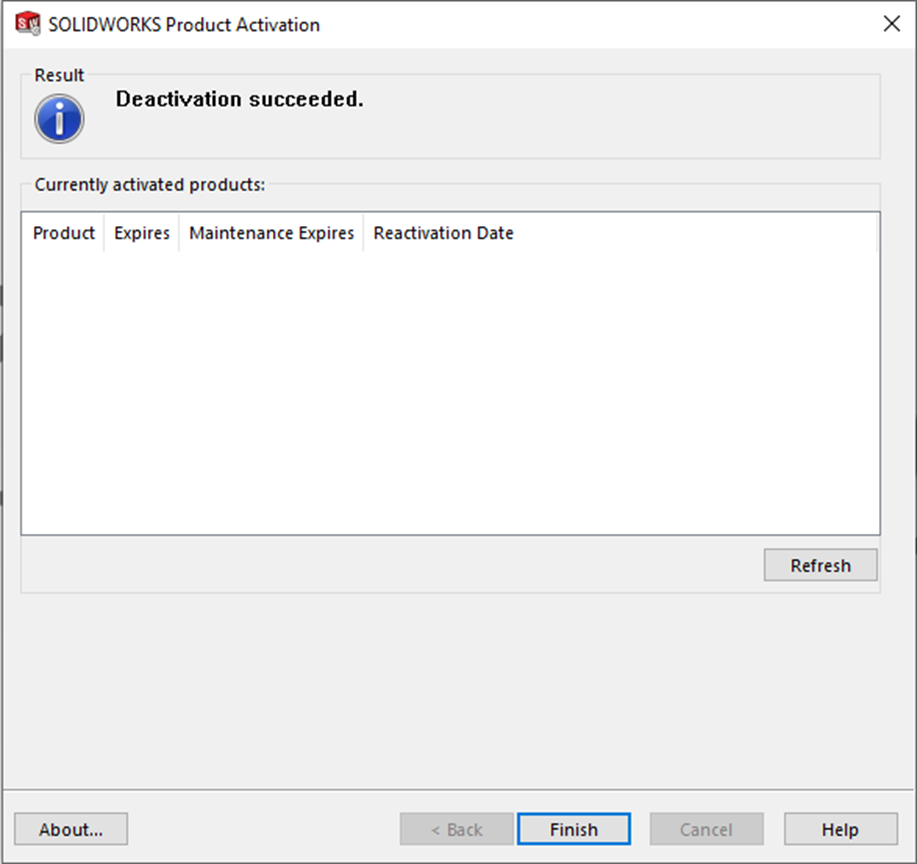
- Click on "Finish"

- Your SOLIDWORKS license is now deactivated on this computer and is ready to activate on the next computer.
Date: 22/04/2022